
Loading...
Loading...
For the best experience, we recommend having your Google Sheets handy while creating the dashboard.
Perfect if you have multiple screens: display Boardly on one and Google Sheets on the other.
Easily switch between browser tabs to access Boardly and Google Sheets.
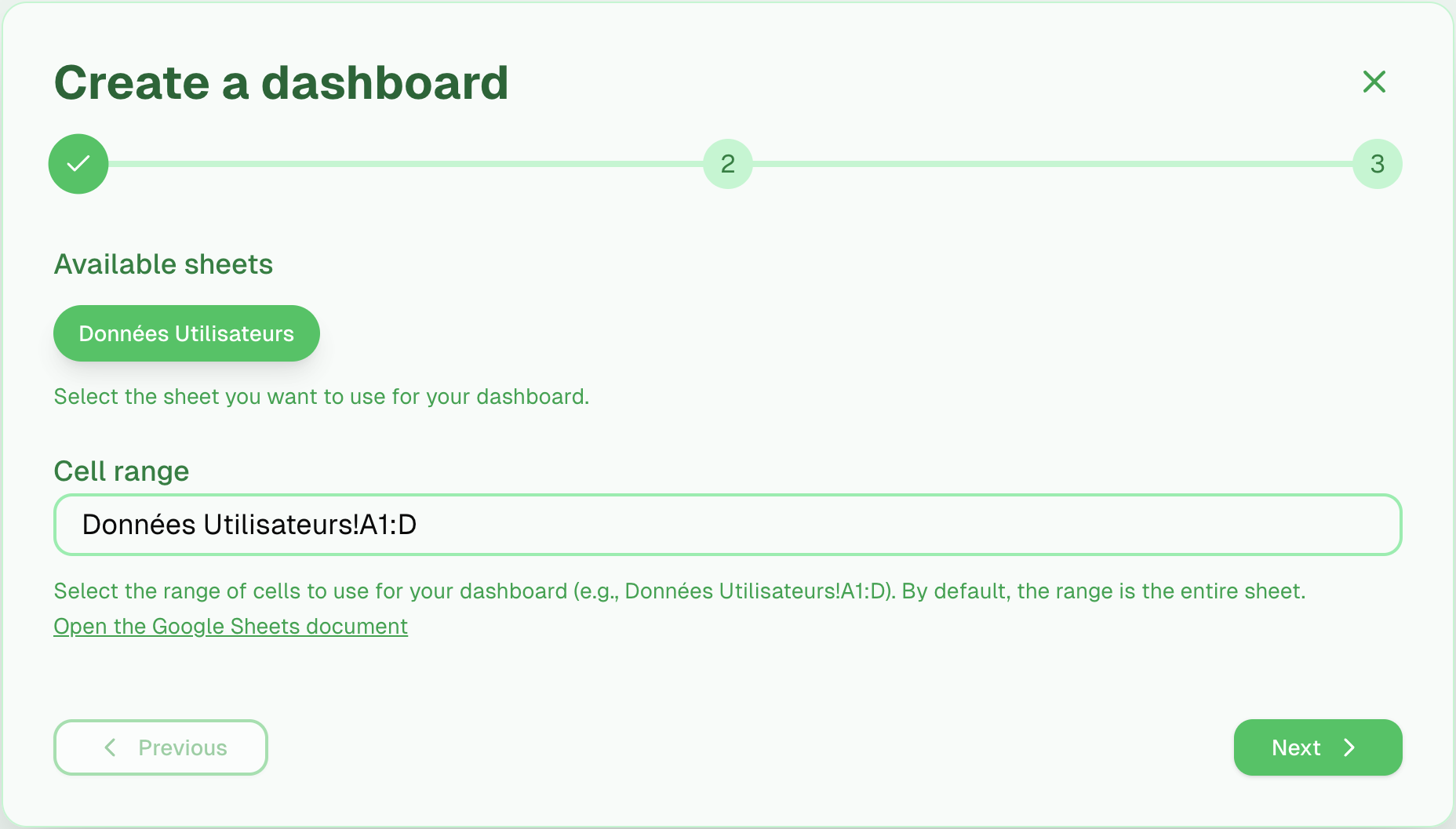
By default, AI only sees column headers. Enabling this option will:
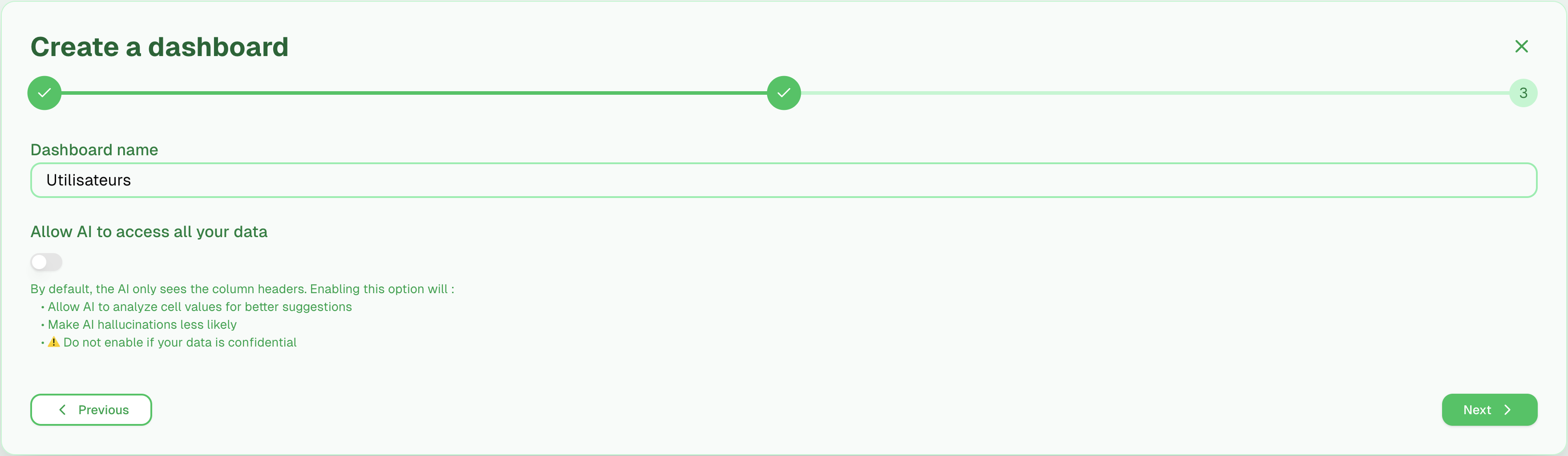
Get all data without any filtering
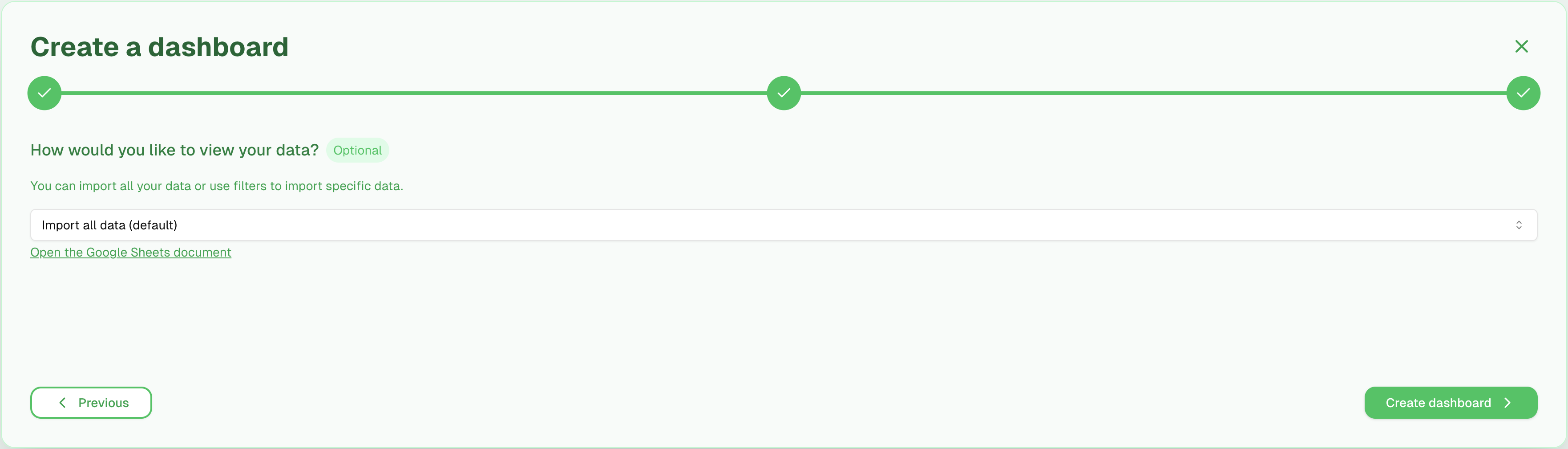
You know what you're doing, just write your own query
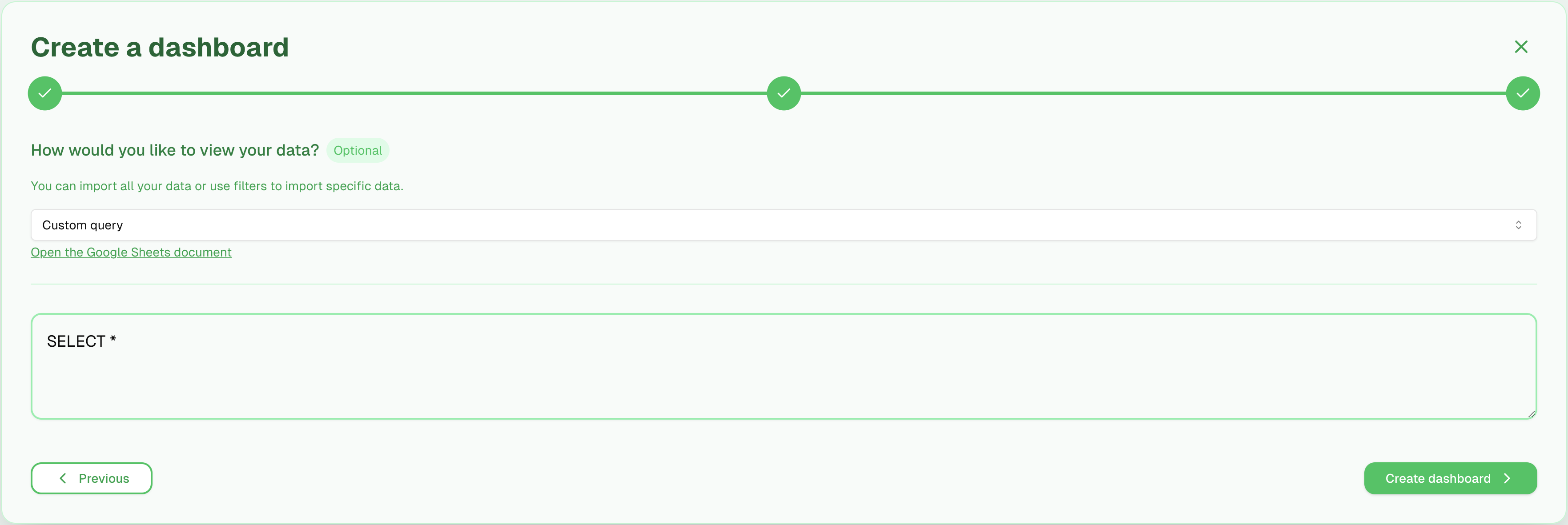
Get helped by AI to filter, aggregate or sort the data. Describe what you want, click on an AI suggestion that fills up the query.
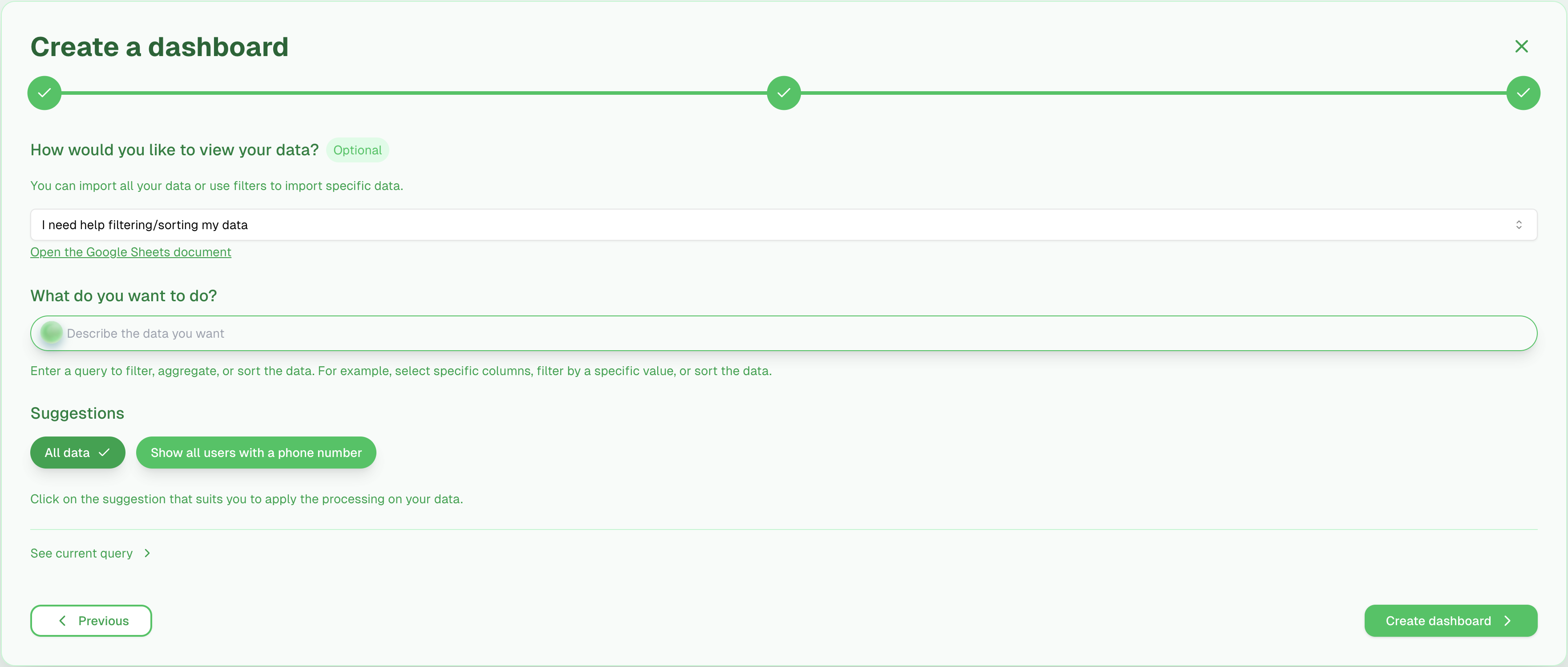
Understanding the steps involved in creating your dashboard
Note: The AI-assisted process may take a few moments as our AI carefully analyzes and optimizes your dashboard configuration.
By default, AI doesn't have access to your Google Sheets data, only to column headers. This ensures the confidentiality of your information while allowing optimal dashboard customization.
If you want to create your own Google Sheets query, check out the official documentation: Google Visualization API Query Language